When it comes to school, a lot of paper is wasted each semester for note-taking and outlining. I’ve recently switched to taking notes via an Apple iPad, and everything about it has made the note-taking experience better. From quickly jotting down a memo to creating budget planners and aesthetic notes, I have been able to do it all with just two items: an Apple iPad Air (3rd generation) and an Apple Pencil.
When it comes to taking notes on the iPad, which app is the best? Which app will allow you to quickly transfer between devices? Which app is most responsive? Which app gives you the “most-bang-for-your-buck?”
What makes a good note-taking app? The key things that I look for in a note-taking app are its user interface and features. Features include its text notation, recording abilities, handwriting, annotation capabilities, copy & paste, organization, multitasking abilities, sharing capabilities, stability, and update history.
In this post, I will discuss the pros and cons of these following apps:
- Apple Notes
- Microsoft OneNote
- GoodNotes 5
- Notability
- Nebo
Apple Notes (Free)
Pros:
- Syncs seamlessly across all (Apple) devices through iCloud
- Handwriting algorithm renders a very smooth display, which is aesthetically pleasing
- Simple and elegant design, which makes the app very easy to use
- Able to copy/paste photos or diagrams into the notes easily
- Continuous vertical scrolling
- Accurate pen touch and finger touch (ex. when you touch onto the screen with your finger, Apple Notes will not render that as a scribble with the pen. This can be changed in its settings).
- Stable app, does not crash
- Updates with system updates
Cons:
- Unable to resize images that are pasted into the note
- Unable to annotate on top of images that are pasted into the note
- No OCR (Optical character recognition)
- Color of the paper (or background) follows the Dark or Light theme setting on your device
- No option to record/add audio for lecture recordings
- No templates
- No lined/graphed paper, so hand-writing may be crooked or skewed
- No option to add more than one pen/highlighter, which means you will have to spend time changing the color/size of your pen each time you want to use a specific size/color
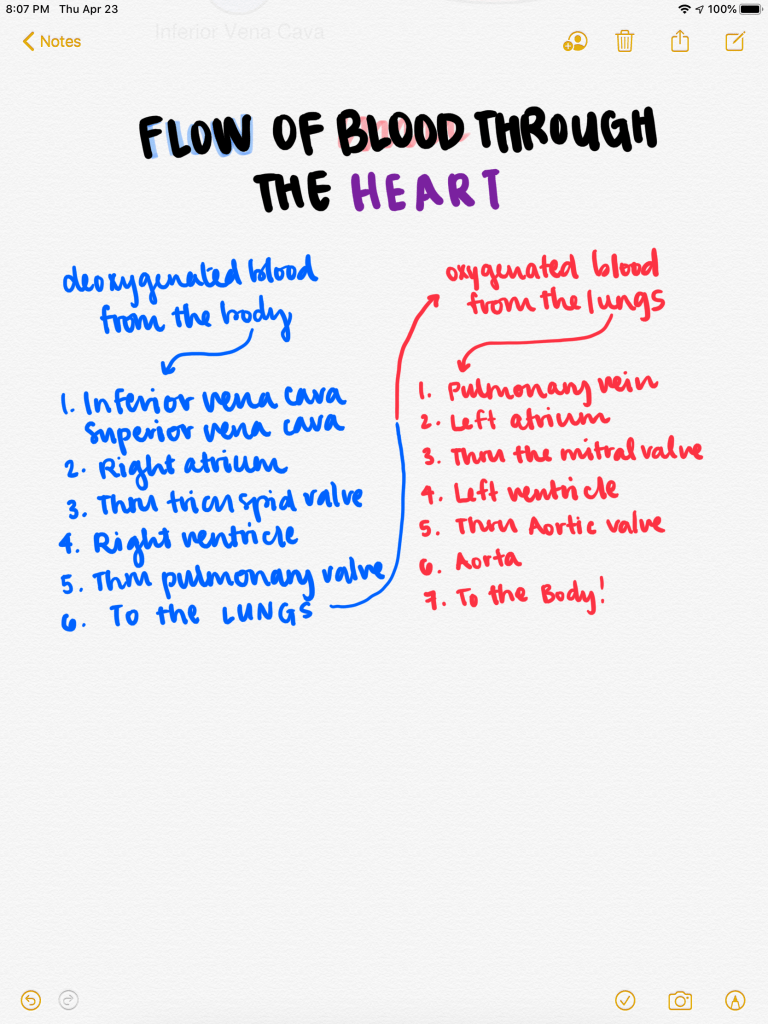
Example of Apple notes:
Microsoft OneNote
Pros:
- Free (with Microsoft Office Subscription)
- Able to sync across all devices
- Easy copy/paste images, tables, pdfs into note
- Classic Microsoft toolbar organization for ease and access
- Can add multiple pens and highlighters
- Spellcheck
- Can change paper color and paper style
- Continuous scrolling
- Allows audio recording
- Has automatic shape recognition
Cons:
- Unstable app (crashes, freezes)
- Over-sensitive touch (This is the only note app that will register my palm and finger swipes as the pen; hence, the note will have little scribbles and marks throughout it due to my palm resting while I write).
- Handwriting is not smooth
- No OCR
- Cannot use handwriting and audio recording simultaneously
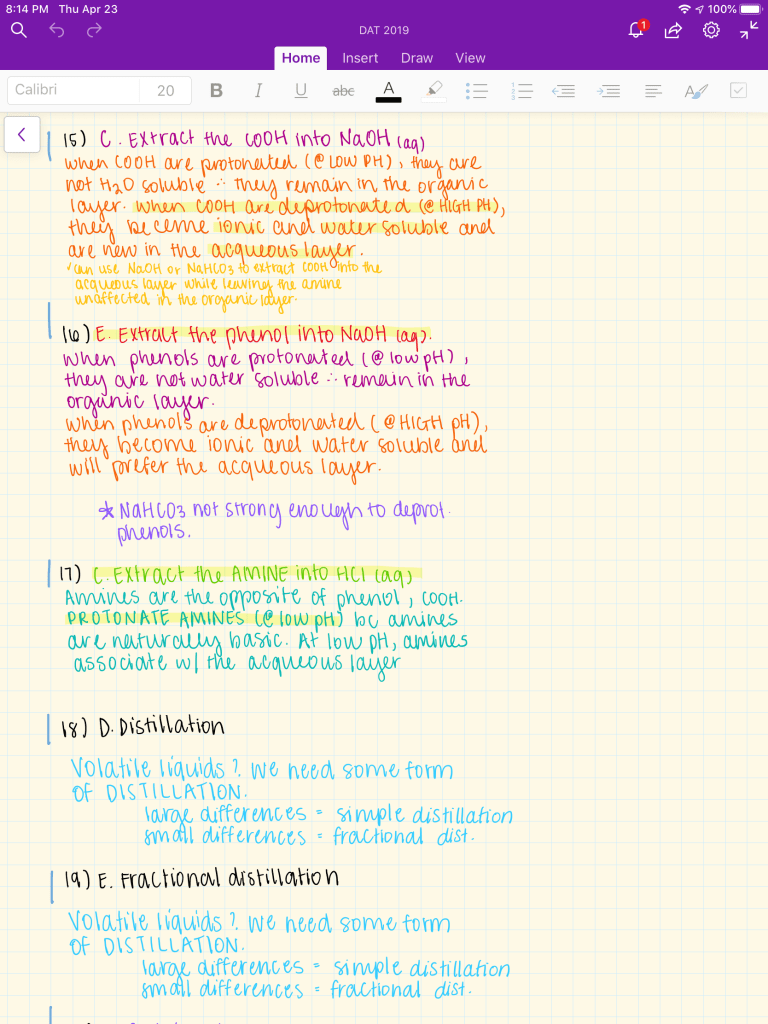
Example of Microsoft OneNote:
GoodNotes 5 ($7.99)
Pros:
- Simple and modern design
- OCR enabled (allows for a multitude of workflows and multitasking)
- Magnification mode (allows you to set different margins and make detailed annotations)
- Ability to bookmark and subcategorize books
- Easy-to-use notebook layout
- Different templates, paper color, and paper styles
- Easy to upload images, pdfs, and tables for annotation
- Pen/highlighter colors are easily customizable (has a save option to quickly access a color)
- Automatic shape recognition
- Multi-tab feature allows for easy multitasking between different notebooks
- Stable app
- Able to recognize between finger touch and pen touch
Cons:
- No audio recording feature
- New app upgrades (ex. GoodNotes 4 –> GoodNotes 5) requires you to download a the new app
- The app for your MacBook or laptop costs money
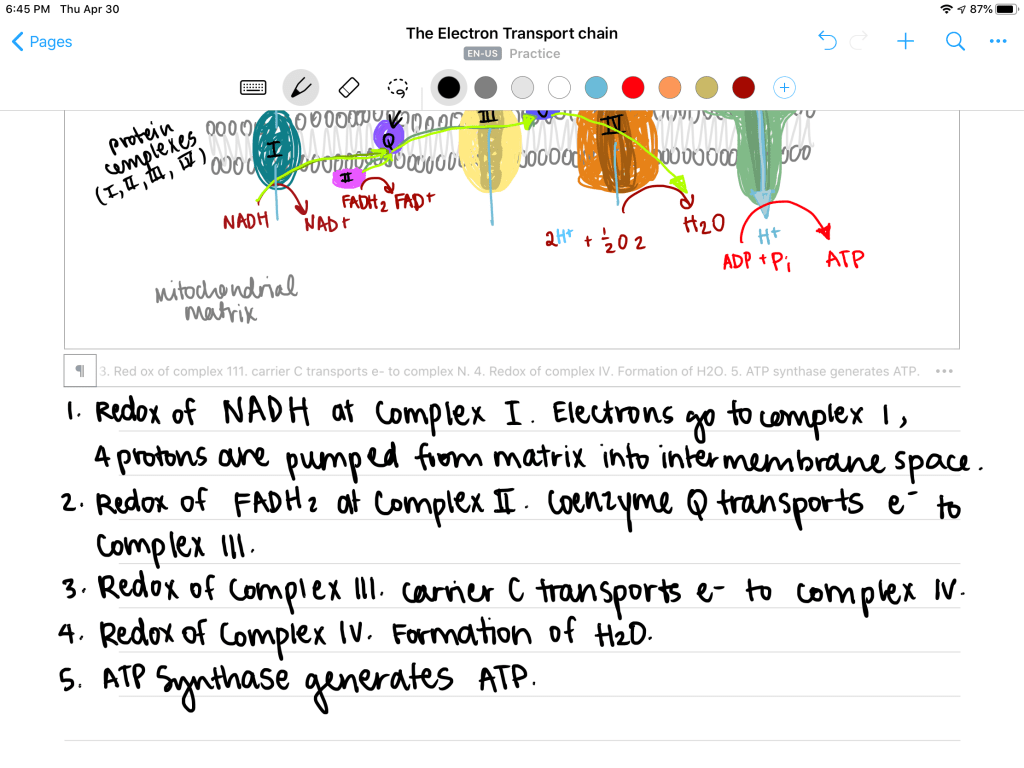
Example of GoodNotes 5:

Notability ($8.99)
Pros:
- Simultaneous audio recording and note taking
- Simple and minimal design for quick and easy use/access
- Highly customizable paper color/style/background
- Smooth handwriting algorithm
- Able to create “subjects” and “dividers” for ease of organization
Cons:
- No lasso tool to move certain objects around
- Plain, does not have the other tools and gadgets that other apps offer
- Expensive
- No OCR
- No subcategorization and bookmarking features
- Not a lot of templates and paper styles to choose from
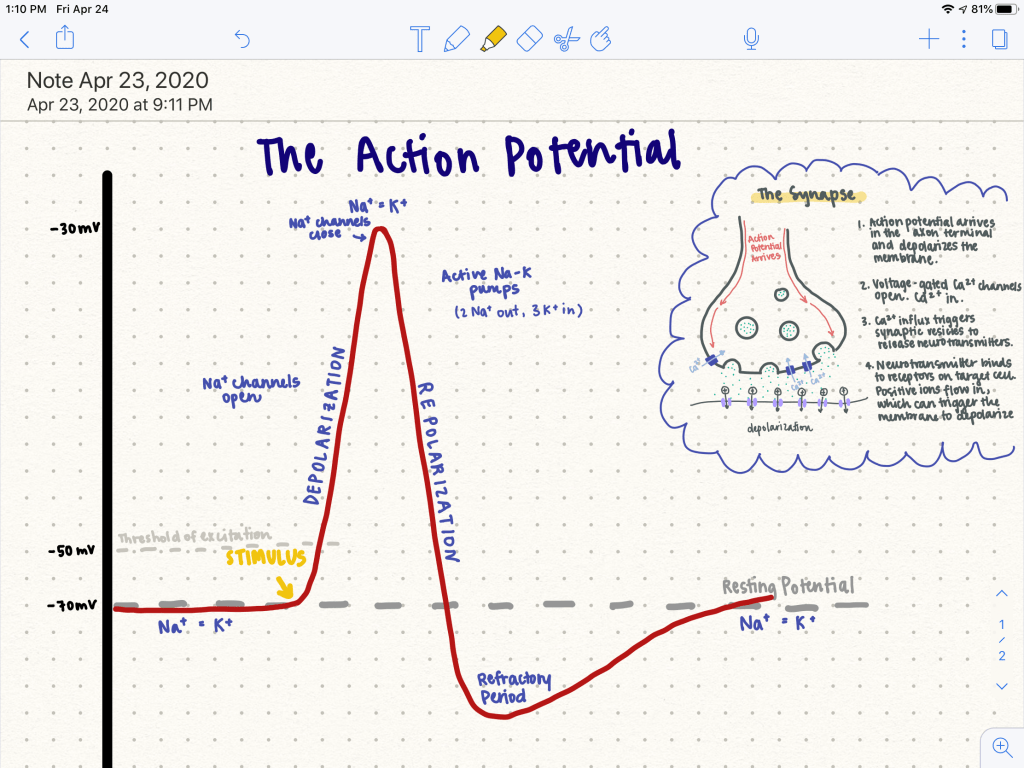
Example of Notability:
Nebo (Free, Pro version: $7.99)
Pros:
- Gesture-based engine, which makes the lack of buttons on your iPad and Pencil a non-issue
- Quick OCR capabilities (tap with your finger as you write, for quick conversion)
- OCR capabilities is good for extended writing and will easily allow you to transform your notes into a typed document
- Quick erase by scribbling over the object you want to delete
- Recognizes math equations
- Has an in-app math calculator
Cons:
- Unable to title your notes
- No paper templates
- Search feature is limited when you search for specific notes
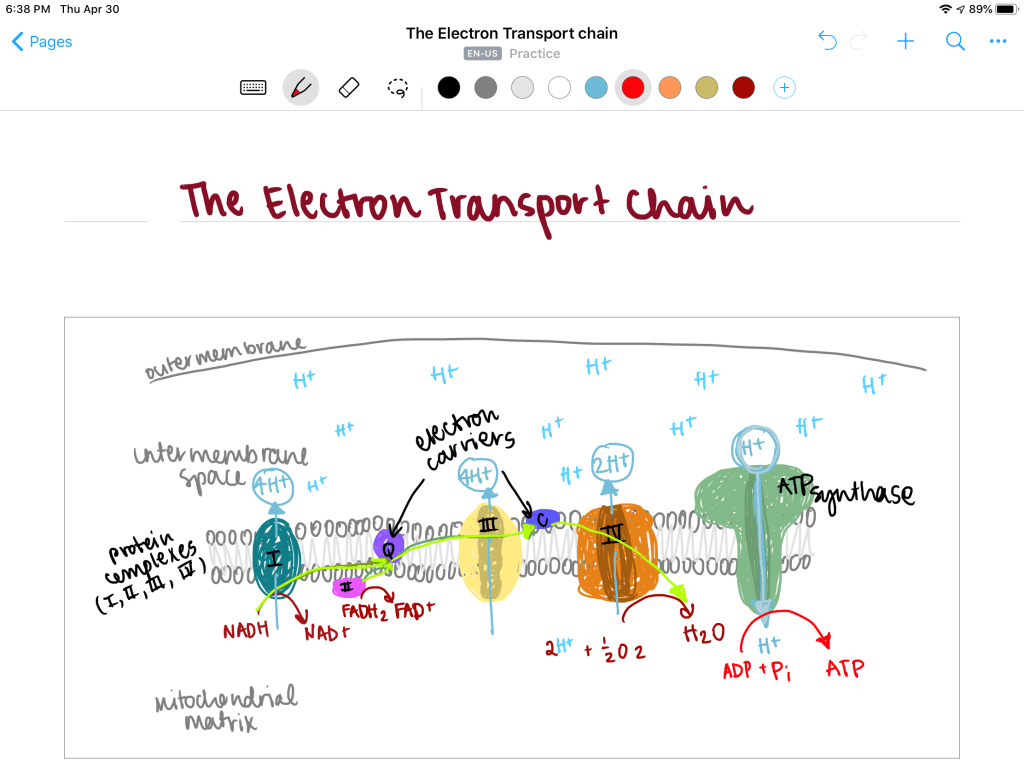
Everyone has their own unique style and preferences when it comes to taking notes. Personally, I utilize GoodNotes that most simply because of its organization capabilities. My best friend uses Nebo the most because she likes quick movements and shortcuts. As a college student, I find that I may not always have the time and luxury to make “cute” notes, so using Apple Notes or simple Google Docs is the best way to go. As I journey on as a student, I’ll be sure to update this post with more useful note-taking apps and my review on them.
As always, good luck!
 Study Tea